
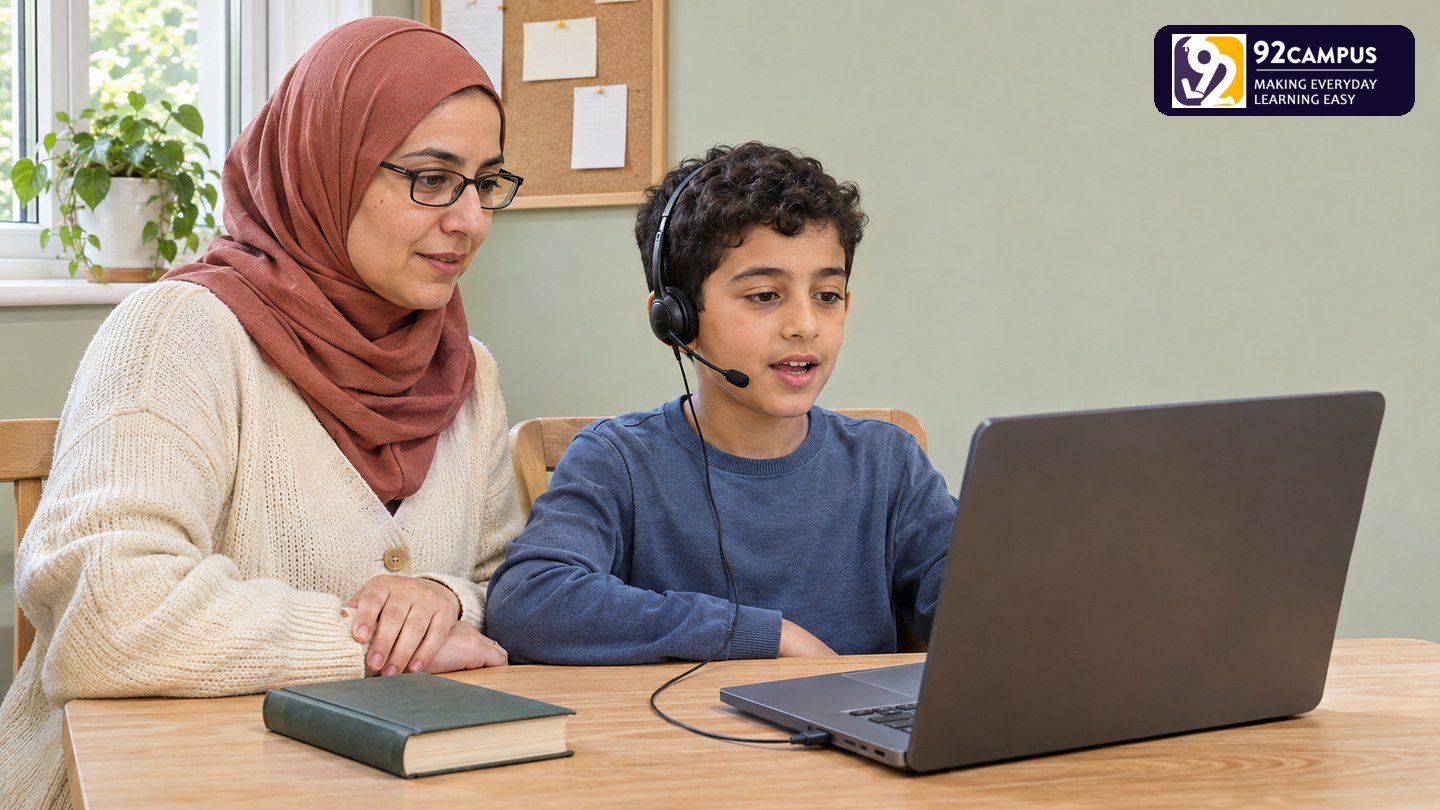
Your child has their book open and is ready to read. The tutor says, “I can’t hear you.” Your child repeats the line, then tries a louder voice. You reach for the volume button, but nothing changes.
A sound problem can quickly become a frustrating start to a lesson. Give your child a simple explanation: “You don’t need to keep repeating. We’re checking how the sound reaches your tutor.” Then work through one check at a time.
This guide helps parents identify the direction of the problem, test the relevant controls and send a useful support message. The worked example and printable cards are editorial tools, not actual student records or an academy-wide technical procedure. Follow the joining details supplied for your own lesson.
First, say which direction is failing
“The sound isn’t working” can describe several different situations. Before changing anything, ask your child and tutor what each person can hear.
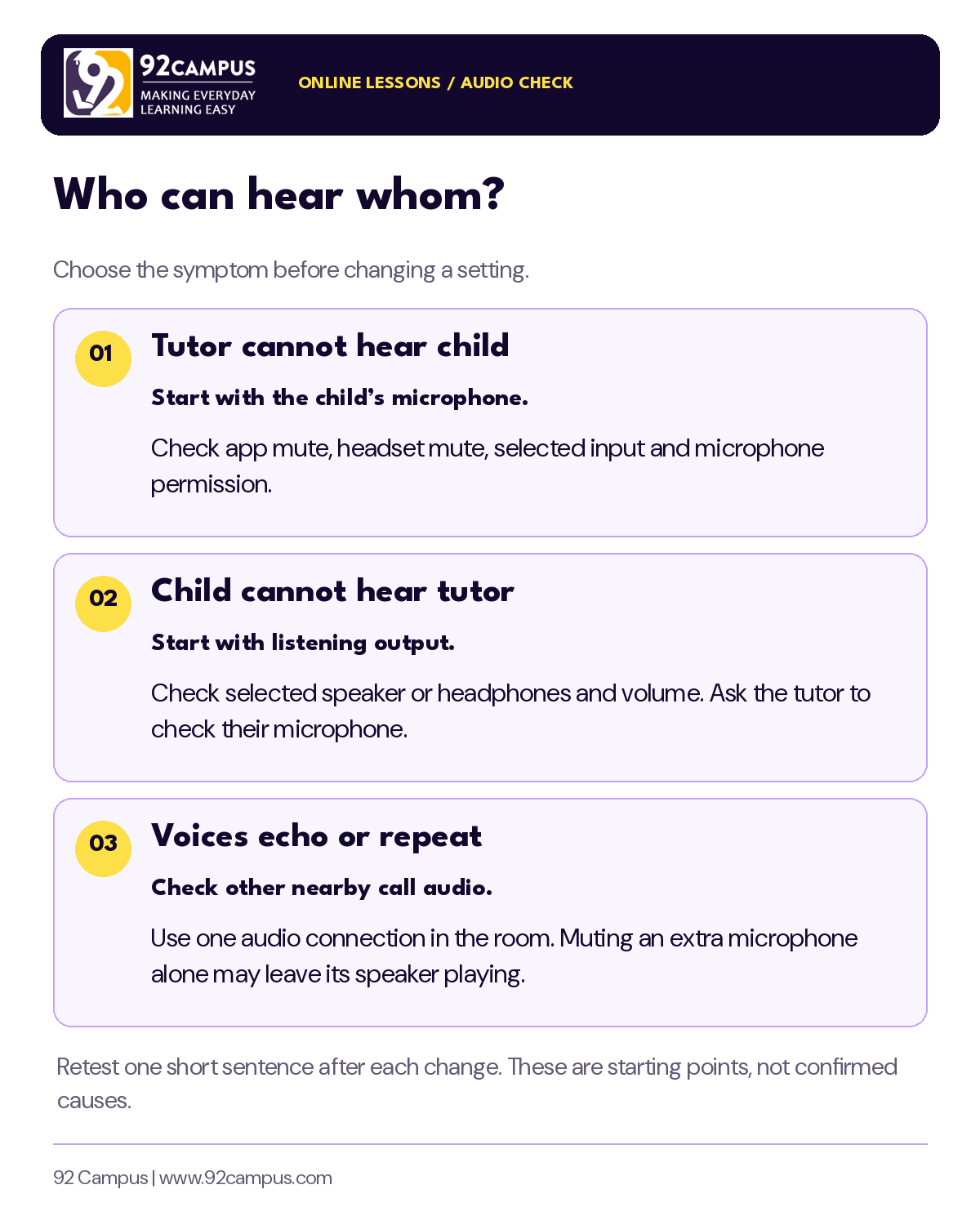
We hear the tutor; the tutor cannot hear the child.Begin with the child’s microphone, mute controls and microphone permission. The tutor hears the child; the child cannot hear the tutor.Begin with the child’s selected speaker or headphones and listening volume; ask the tutor to check their microphone too. Both people hear voices, but there is an echo or repeated sound.Check for another device playing the same call nearby.These are starting points, not diagnoses. For example, a microphone selected on your side does not prove the tutor’s speaker is working. If both directions fail, tell the tutor or support team that before trying a branch below.
If the tutor cannot hear your child
Check mute in two places
Look at the microphone control in the lesson app, then check the headset or microphone itself for a separate mute switch. Microsoft’s Teams microphone troubleshooting guide identifies both app mute and physical microphone controls as checks.
After one change, ask your child to say an ordinary sentence, such as “My book is open.” Ask the tutor whether they heard it. There is no need to keep reading the assigned passage while you check a control.
Choose the microphone actually being used
In the app’s audio settings, look for the microphone or input selection. Confirm it matches the built-in microphone or connected headset you intend to use. A speaker selection and a microphone selection are separate controls.
For Teams on desktop, Microsoft documents Settings and more → Settings → Devices for selecting audio devices. See its call-settings instructions. Menu names and available features vary by app, account and device; use the official instructions matching your version.
Do not select several unfamiliar devices in quick succession. Note the current selection, try the intended microphone, and repeat the same short sentence. Ask the tutor to confirm what changed.
Check microphone permission
An app or website may need microphone access from the device or browser. If you join in Chrome on a computer, Google’s microphone-permission guide explains how to review permission for the particular site and the selected microphone. A work- or school-managed browser may require administrator help.
Use permission for the recognised lesson site or app. You do not need to make a blanket change for every website. If a control is unavailable or managed, tell support rather than repeatedly trying unrelated settings.
If there is still no sound: report the selected microphone, mute status and permission result. The next check may need the tutor or support team’s help; a child speaking louder is not a substitute for identifying the fault.
If your child cannot hear the tutor
Start by saying, through the agreed chat or contact route: “You can hear us, but we cannot hear you.” Check the chosen listening device and its volume. Also ask whether the tutor’s microphone is sending sound.
For example, if headphones are plugged in but the app’s speaker menu names another output, choose the device your child is actually listening through. Ask the tutor to say a short sentence again. Microsoft’s Teams speaker guide explains output selection, mute and connection checks.
Keep the child’s reading turn paused until the question or model is audible. Once sound returns, ask the tutor to repeat the instruction. A parent can restore access without supplying the answer. Our guide on sitting with your child during online Quran lessons explains that distinction.
If voices echo, check the second device
A parent may join on a phone to observe while the child uses a laptop. If both devices play the same call in the room, check that arrangement first. Zoom’s echo guidance explains that another nearby audio connection can create echo and that muting only its microphone may leave its speaker playing.
Agree which device will carry the lesson sound. Disconnect the other device’s meeting audio, or leave that extra connection, using the app’s instructions. Test again before changing the main microphone. If echo remains, tell the tutor; the source has not yet been established.
Preserve the observation arrangement your family needs. Solving a sound loop does not require a parent to stop observing: watching on the child’s screen may be an option, or the team can help discuss another suitable setup.
Test before the next lesson, using your actual app
A preparation check lets you explore controls without your child waiting through a reading turn. Use the same device, headset and room intended for the lesson.
- Teams: the work-or-school desktop instructions include a Make a test call option in Devices. Microsoft states this test feature is available in the desktop app for Windows and Mac. Do not assume it will appear in a browser or every account.
- Zoom: the official audio-testing guide explains speaker tests and microphone playback. Its mobile instructions differ from the desktop steps.
- If the feature is missing: use the help page for your app and ask the academy how to arrange an appropriate check. Do not create a new lesson link or change the agreed platform yourself.
A test tone heard through headphones checks listening output. A microphone playback checks captured sound. Neither alone confirms that both directions of the actual lesson call are clear. Before reading, exchange a short sentence with the tutor and let each person confirm what they heard.
No new purchase is needed to start these checks. First identify the unresolved problem and the equipment already available; buy something only if there is a clear reason it would address that problem.
Worked example: one change, then a clear confirmation
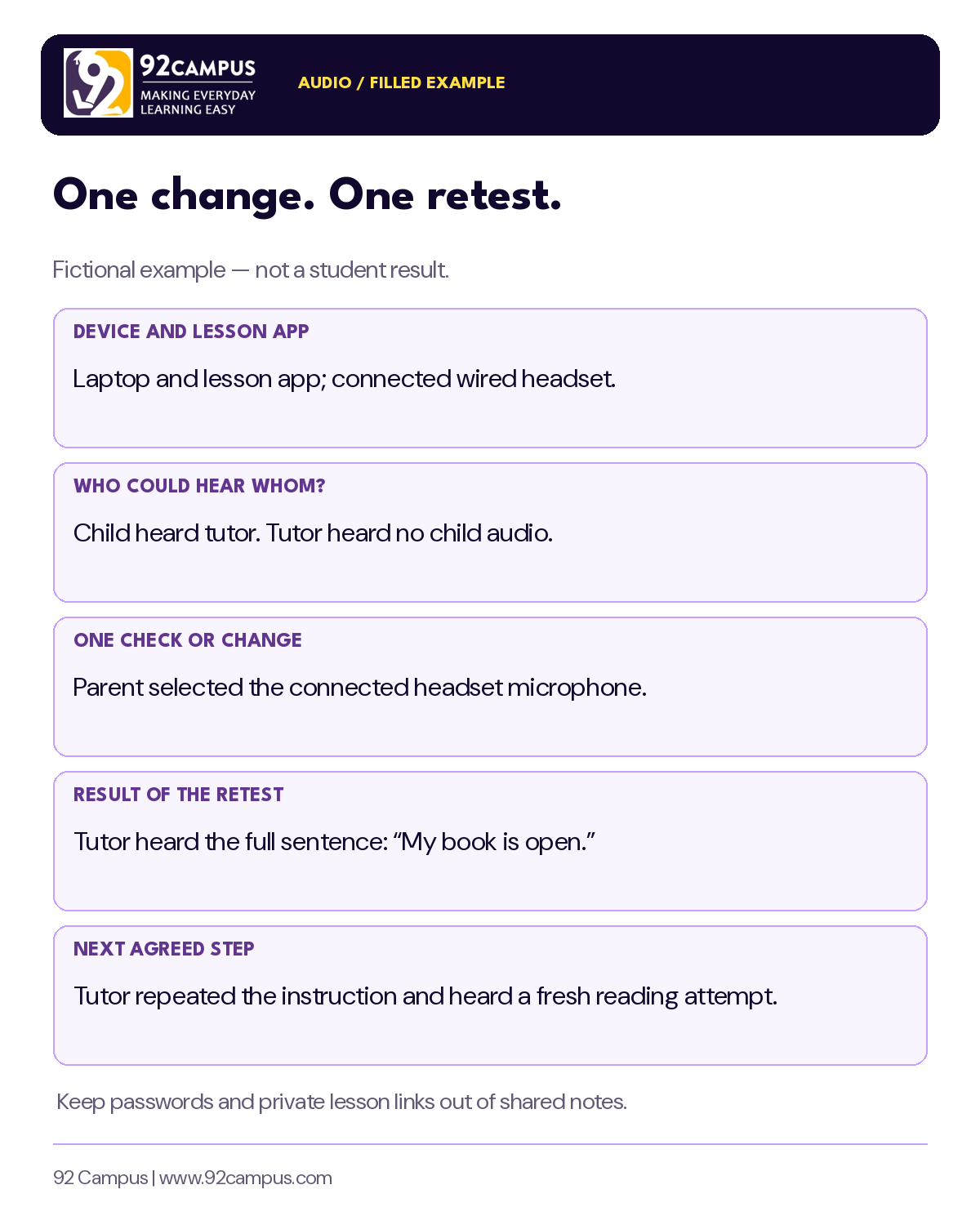
Illustrative scenario: a child hears the tutor, but the tutor hears nothing from the child. A parent has connected a headset since the previous lesson.
- Describe: “We hear you clearly, but you cannot hear us.” The parent checks app mute and the headset’s mute control.
- Inspect: the app’s microphone menu still shows a different input. The parent selects the connected headset microphone and changes nothing else.
- Retest: the child says, “My book is open.” The tutor confirms hearing the whole sentence.
- Resume: the tutor repeats the reading instruction and listens to a fresh attempt.
The useful note is “Sound became audible after selecting the headset microphone in this call.” It is not “Every sound problem is caused by a wrong microphone” or “The child’s recitation is now correct.” The technical check and the tutor’s reading feedback answer different questions.
If the same change did not help, record “No change” and pass that information to support. A worked example shows a process; it does not promise the same outcome for another device.
Keep a small audio-check record
Copy these fields onto paper or save the blank sheet below. One useful entry can be enough; it is not a requirement to document every lesson.
Device and lesson appWhat device and app or browser were used? Who could hear whom?State the direction, or describe the echo. One check or changeWhat exactly was inspected or adjusted? Result of the retestWhat could each person hear afterwards? Next agreed stepResume, request help, or follow a confirmed reconnect arrangement.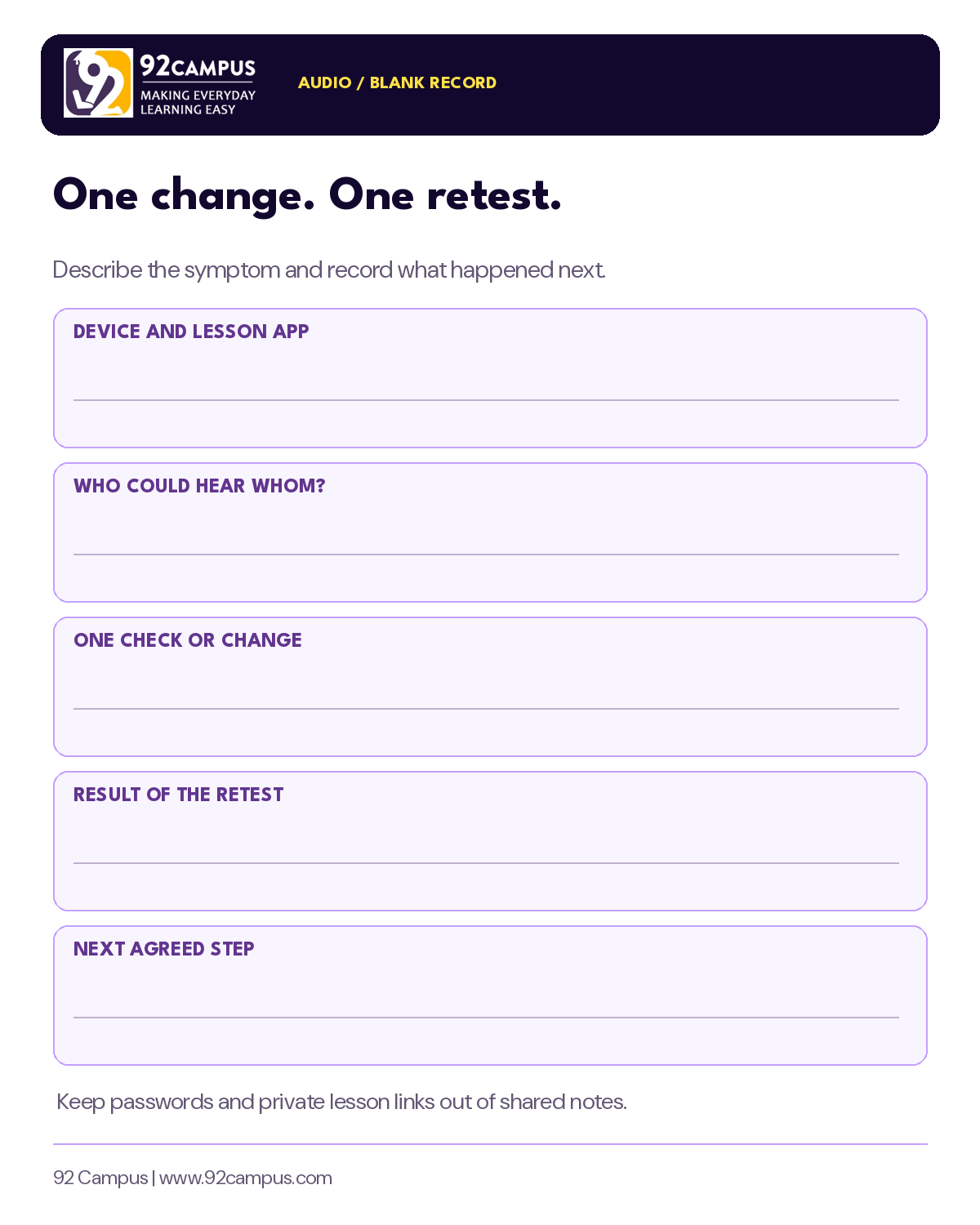
Filled example: laptop and lesson app; child heard tutor but tutor heard no child audio; parent selected the connected headset microphone; tutor then heard the full test sentence; tutor repeated the instruction and resumed listening. This is fictional and does not document an actual 92 Campus learner.
When the checks do not resolve it, send a precise message
Use the academy’s confirmed contact route. A message like this gives support a starting point without asking the child to keep repeating:
“Hello. For today’s lesson, we are using [device] and [app/browser]. We can hear the tutor, but the tutor cannot hear our child. We checked [mute / selected microphone / site permission]. After [one change], the result was [what happened]. Please advise the next check and confirm whether we should reconnect using the existing lesson details.”
Include the lesson date, local time and request reference if support needs them. Do not send passwords or post joining links publicly. If a screenshot is requested, remove unrelated personal information before sharing it through the agreed route.
If voices keep breaking up rather than disappearing completely, describe that symptom separately. Say which person heard the interruption and whether it affected ordinary speech too. A “working” microphone icon is not enough information to judge the connection or a reading attempt.
Agree when to pause troubleshooting and what happens next. Check the academy’s actual missed-time and reconnection arrangements; do not assume a free replacement, refund or an instant alternative tutor. The tutor should hear the affected passage again once the sound is usable.
Return the reading turn to your child
Once both sides can hear, close the settings and let the tutor give a fresh instruction. A calm “The sound is back; your tutor is ready to listen” is enough. Keep any technical interruption separate from notes about reading progress.
92 Campus offers one-to-one Quran classes for children, with parent help for joining and device access where needed. If you are considering lessons, use the free-trial guide to prepare questions about the learner’s starting point and setup.
Share your child’s learning level and the setup you plan to use, and discuss a suitable starting lesson. The team checks availability before confirming the tutor and local time. For an existing lesson problem, use your established support contact.
Join the conversation
Comments are reviewed before publication. Your name and approved comment will be public. Please leave out private learner or contact details.